


Most early-stage founders don’t ignore security on purpose. They just never get to it. The Instagram password lives in a WhatsApp group, the GST portal login sits in a shared sheet, and an intern who left in March still has access to the folder with customer numbers. Nothing happens for months.
And then one day something does. Security on a zero budget doesn’t need a CISO or a ₹50,000-a-month tool. It needs a short list of free tools set up once, a few rules your team actually follows, and one page that says what to do when things go wrong.
The flow is straightforward:
List every account → Move logins into a password manager → Turn on two-step sign-in → Lock down email and domain → Protect the website → Back up and test → Watch for leaks → Write the incident plan → Review monthly
The Stack
Here, you’re trying to answer four questions: who has access to what, how hard is it to break in, what happens if something is lost, and who do we call when it goes wrong?
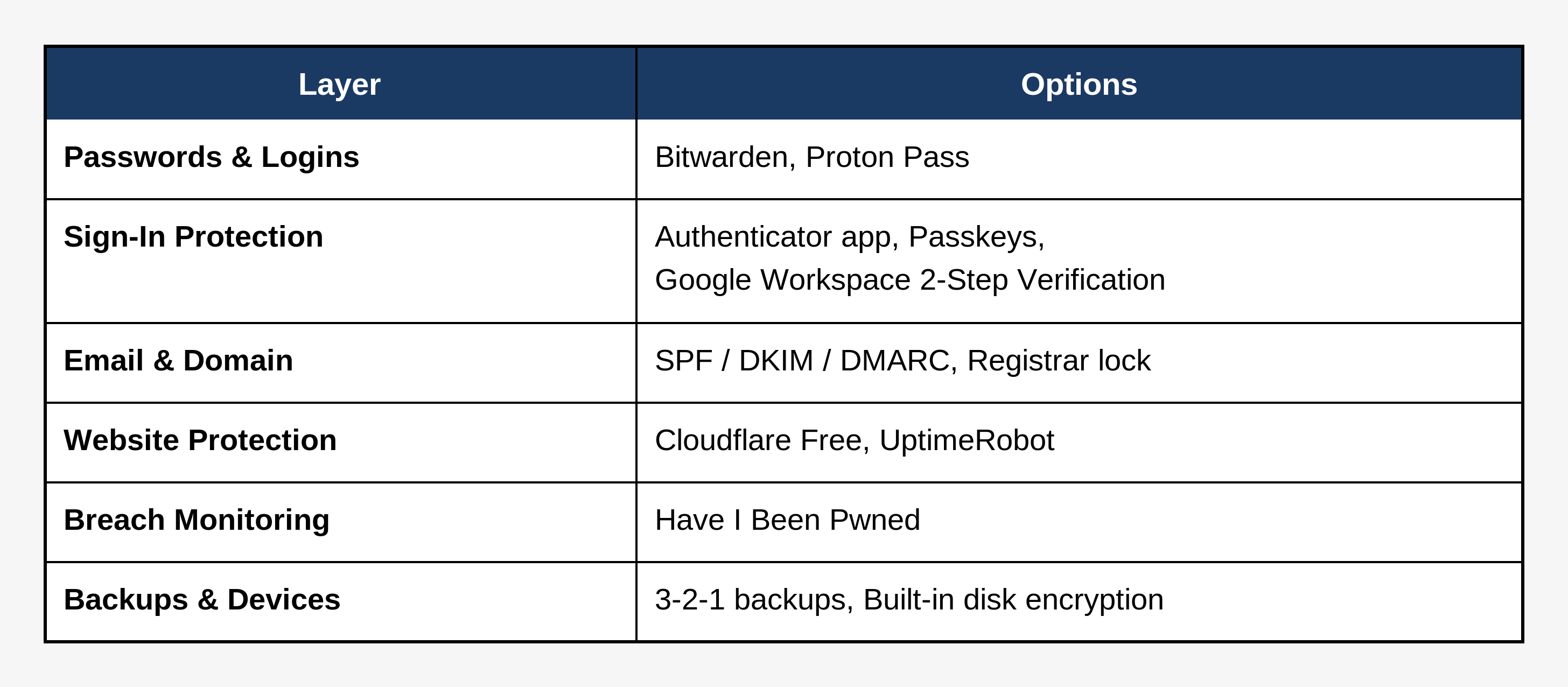
Passwords & Logins
• Bitwarden: Free for individuals, with unlimited logins, notes and cards across any device. A free organisation lets you share with one other person in up to two collections, which works for two co-founders. Once a team joins, you’ll need a paid Teams plan, priced per user.
• Proton Pass: Free plan includes unlimited passwords and devices, and passkey support. The catch: free accounts are capped at ten email aliases and three two-step logins, and vault sharing is paid.
• Your browser’s built-in manager: Better than reusing one password everywhere. But it’s weak for sharing and offboarding, so treat it as a stopgap, not the plan.
Sign-In Protection
• An authenticator app: Google Authenticator or Microsoft Authenticator, both free. Prefer these over SMS codes wherever you have the choice.
• Passkeys: Supported by Google accounts, and Google Workspace accepts them alongside security keys. They’re harder to phish than passwords, so use them wherever a service offers them.
• Google Workspace 2-Step Verification: Workspace itself is paid, but if your team is on it, enforcing two-step sign-in costs nothing extra. In the Admin console, go to Security > Authentication > 2-step verification, and check enrolment on the Security health page. Start with admin accounts.
Email & Domain
• SPF, DKIM and DMARC: Free to set up, since they’re just DNS records, not products. They make it harder for someone to send email pretending to be you. Your email provider’s admin guide walks through each one.
• Registrar account and domain lock: Whoever controls your domain controls your email and your website. Put two-step sign-in on the registrar account and switch on the transfer lock.
Website Protection
• Cloudflare (Free plan): Includes DNS, unmetered DDoS protection, a universal SSL certificate and a basic WAF. The catch: the free plan gets Cloudflare’s Free Managed Ruleset, which covers high-impact, widely exploited vulnerabilities, while the fuller Managed and OWASP rulesets start on the Pro plan.
• UptimeRobot: Its free plan covers up to 50 monitors with five-minute checks, so you hear about downtime before your customers tell you. UptimeRobot describes the free plan as suitable for commercial projects, though it allows only five integrations.
Breach Monitoring
• Have I Been Pwned: Free email search shows whether an address has appeared in a known breach. Domain search is free only while your domain has up to ten breached addresses; beyond that, it needs a paid subscription starting at a few dollars a month.
Backups & Devices
• The 3-2-1 habit: Three copies of anything important, on two kinds of storage, with one kept off-site. A free cloud storage tier plus an external drive covers most early teams. Restore one file to prove it works.
• Built-in device protection: Switch on disk encryption (FileVault on Mac, BitLocker or device encryption on Windows), set a screen lock, and enable your phone’s find-and-wipe feature. A laptop left in a cab becomes an inconvenience, not a breach.
The Rules You Can’t Skip
• CERT-In: Since June 2022, CERT-In’s directions require service providers, intermediaries, data centres and body corporates to report listed types of cyber incidents within six hours of noticing them. The clock starts when you notice, not when you finish investigating. Check the current list of incident types on the CERT-In site.
• DPDP Act and Rules: The DPDP Rules were notified on 14 November 2025. The Act allows penalties of up to ₹250 crore for failing to maintain reasonable security safeguards, and requires telling affected people and the Data Protection Board about a breach. Start now, since the habits below are what “reasonable safeguards” will look like in practice.
A sensible starting default: Bitwarden or Proton Pass for logins + an authenticator app or passkeys for two-step sign-in + SPF, DKIM and DMARC and a locked domain + Cloudflare Free in front of the site + UptimeRobot for downtime alerts + Have I Been Pwned for breach checks + 3-2-1 backups with encrypted devices + a one-page incident plan that names who reports to CERT-In.
The Build Checklist
☐ List every account on one sheet: Tool, owner, who has access, and whether two-step sign-in is on. You can’t protect what you haven’t listed.
☐ Move every login into a password manager: Then delete passwords from WhatsApp chats, notes apps and shared sheets.
☐ Turn on two-step sign-in, starting with the big five: Email, bank, domain registrar, payment gateway and cloud console, in that order.
☐ Choose an authenticator app or passkey over SMS: Text messages can be intercepted or SIM-swapped.
☐ Store recovery codes offline: Print them or keep them in a sealed place, and make sure at least two people know where.
☐ End shared logins: Give each person their own account and the lowest role that lets them do their job.
☐ Set up SPF, DKIM and DMARC: Then send a test email to confirm it still lands in the inbox.
☐ Lock the domain and put it behind Cloudflare: Check that the SSL certificate renews automatically.
☐ Back up, then restore once: A backup you’ve never restored is a hope, not a backup.
☐ Encrypt every laptop and phone: Screen lock on, find-and-wipe on.
☐ Write a one-page incident plan: Who decides, who to call, where to report within six hours, and who tells customers.
☐ Write an offboarding checklist: Revoke access to every tool on the last working day, not the following week.
☐ Keep customer data out of AI tools and open-link sheets: Share only aggregated, anonymised numbers, and check each file’s sharing setting.
☐ Publish a privacy policy and a clear consent notice: Name one person people can contact about their data, since the DPDP Rules expect it.
☐ Put a 20-minute review on your calendar every month: Who joined, who left, what changed, what’s expiring.
Measuring Whether It’s Working
Track five signals. Together they tell you whether you’re safer, or just busier.
• Two-step coverage: Of your business accounts, how many have two-step sign-in on? Anything below all of them leaves a door open.
• Shared logins: How many accounts are still used by more than one person on a single login? The number should keep falling towards zero.
• Time to revoke access: When someone leaves, how long until every login is closed? Same day is the target.
• Last restore test: When did you last get a file back from a backup? If you can’t remember, it’s overdue.
• Time to answer “who do we call?”: If something goes wrong tonight, can anyone on the team find the plan and the right contact in five minutes?
Almost no founder remembers the day they set up a password manager. But many remember the day they didn’t have one. Security, in many ways, is quiet work, and it only shows itself when something goes wrong. That’s exactly why it’s worth doing before it does.
At Razorpay Rize, we get it- building a startup is tough. That’s why we’re more than just a space for connecting with other founders. We’ve got programs, tools, and services designed to take some of the weight off the shoulders and make the journey just a little bit easier.


Dive into Vault today & unlock a world of possibilities.